
To begin using the Kemo IPTV service on your MAG box, simply follow the steps below:
1. When the box is being loaded the main portal screen appears. After that, Click on "SETTINGS", Press remote button "SETUP/SET".
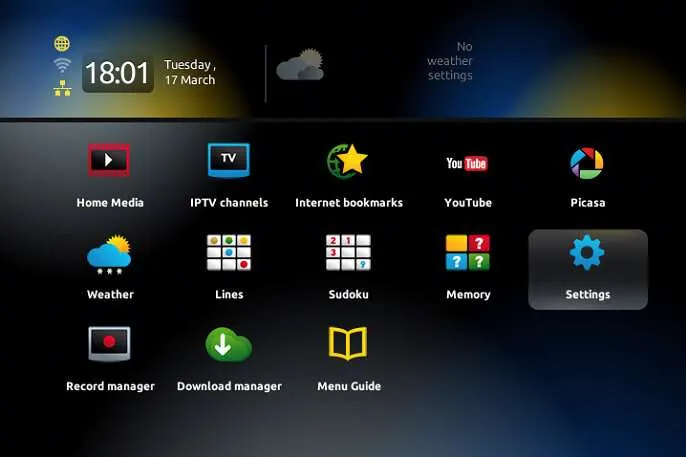
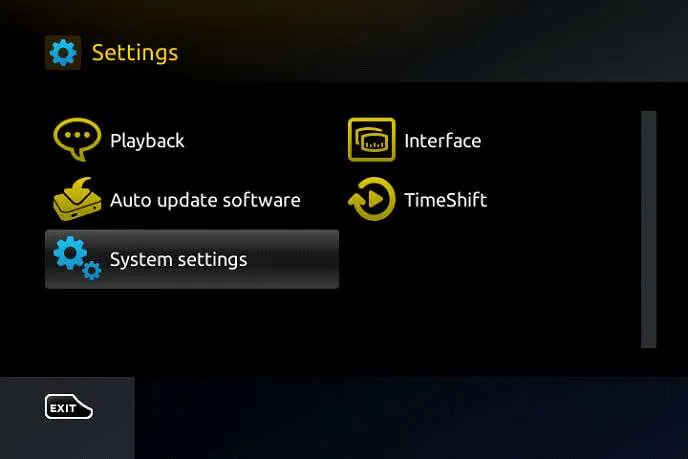
2. Then, Click on "System settings" and click on "Servers".
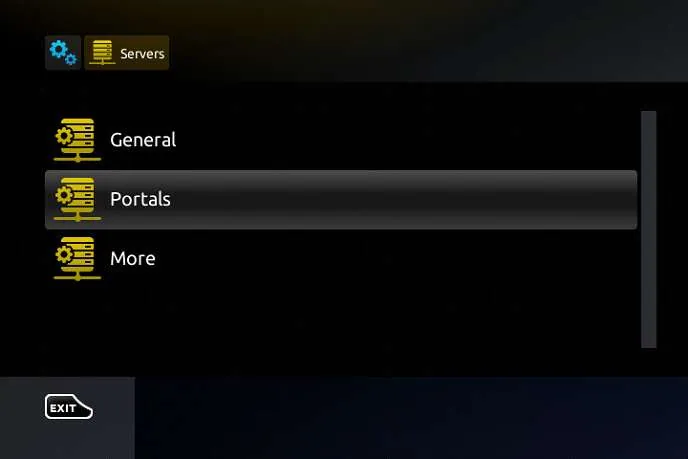
3. Select "Portals".
4. In the "Portal 1 Name" section, enter Kemo IPTV. In the "Portal 1 URL" section, enter the Portal URL provided by us after subscribing.
You must send us the MAC address of your device (starts with 00:1A:79:...), you can find it at the bottom of your box. Get Your Kemo IPTV Subscription.
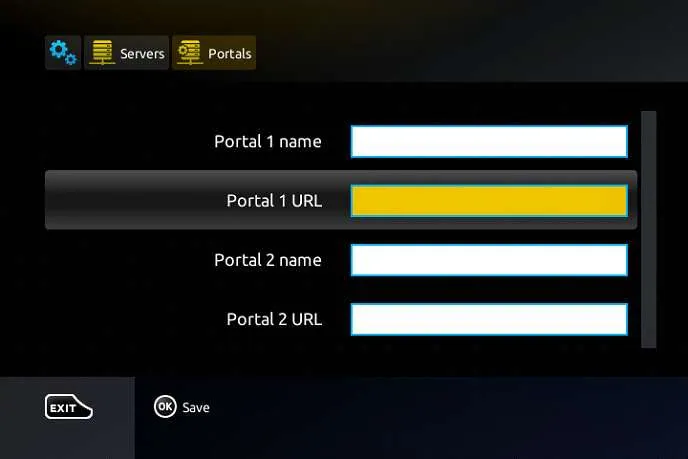
5. When all the operations listed above is done, then press "OK".
When the settings are being saved, then click on "EXIT" on the remote control and click on option "General". In the "NTP server" line, enter the following address: pool.ntp.org (or us.pool.ntp.org for North America) and Click on "OK".
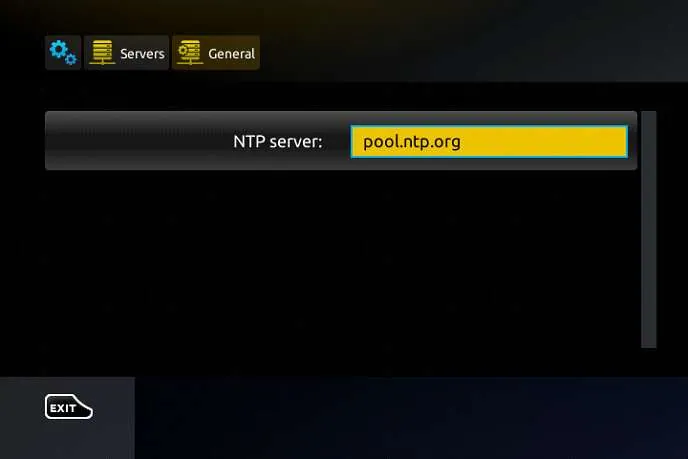
6. Once you've completed all the preceding steps, click on "EXIT" twice with your remote control. Afterward, select "Restart portal" to finalize the setup process.
Now, Congrats! Enjoy watching your favorite channels, movies and series on your MAG Box.
Kemo IPTV on MAG Box: Troubleshooting & Pro Tips
"Your STB is Blocked" or "Page Loading Error"?
This means your device's MAC Address is either inactive or has a typo. Ensure your MAC begins with 00:1A:79: and contact our WhatsApp support team with your exact MAC for instant activation.
Portal URL ending format requirement
Make sure your Portal URL ends with /c/ or matches the exact string provided in your subscription email, e.g. http://mag-portal-url.com:port/c/.
Buffer length optimization for zero freezing
Go to System Settings > Video > Buffer length and set it to 2000 ms – 5000 ms for ultra-stable playback during live sports.
Kemo IPTV on MAG Box: Frequently Asked Questions
How do I register a MAG box?
MAG boxes authenticate by MAC address rather than a login. Send us the MAC printed on the underside of the box, we add it to the portal, and your Kemo IPTV channels appear after a reboot.
What portal URL do I enter?
The portal address is in your Kemo IPTV activation email. Enter it under Settings > System Settings > Servers > Portals, save, then restart the box.
Can I use STB Emulator instead of a real MAG box?
Yes. STB Emulator on Android reproduces the same portal interface. Set the profile to MAG 254, generate a MAC address, and send us that MAC so we can link it to your Kemo IPTV account.
My box says the portal is not available — what now?
That message nearly always means the MAC is not yet authorised or the portal URL has a typo. Re-check the address character by character, then message support so we can confirm the MAC on your Kemo IPTV account.