
To begin using the Kemo IPTV service on your BuzzTV Box, Follow the steps below for easy setup:
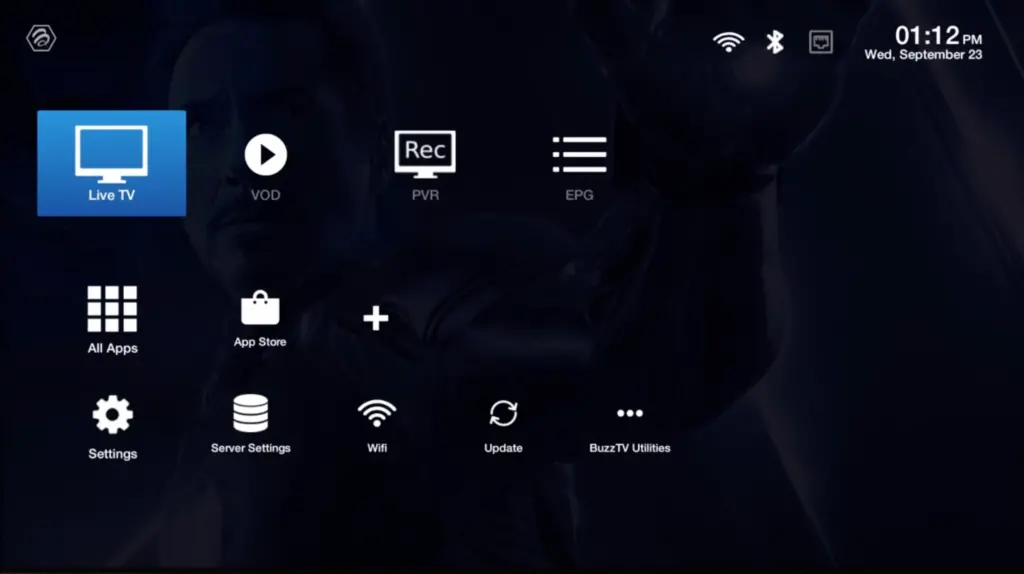
Step 1: Go to Live TV section.
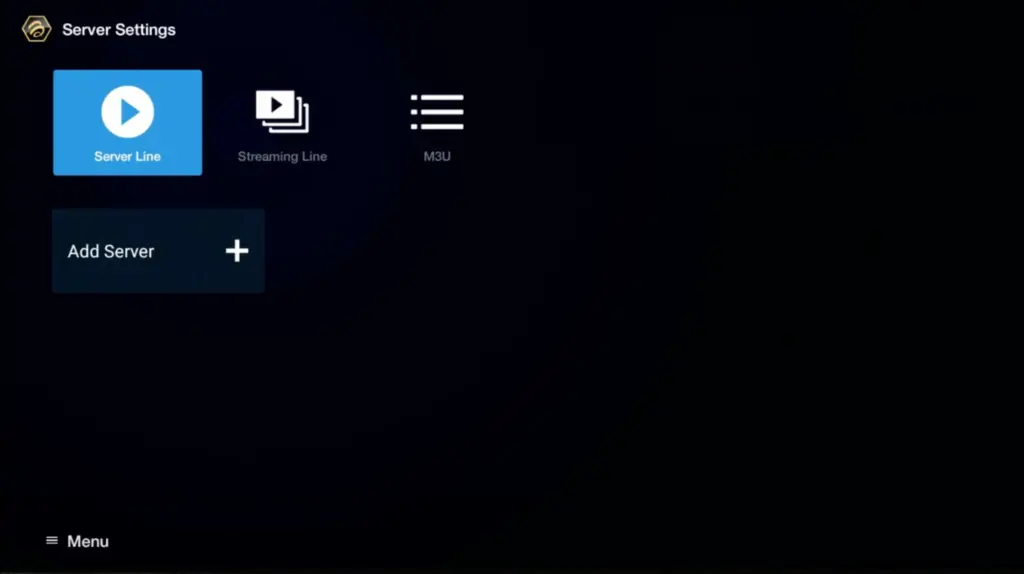
Step 2: Select “Server Line” or “MAC Server”.
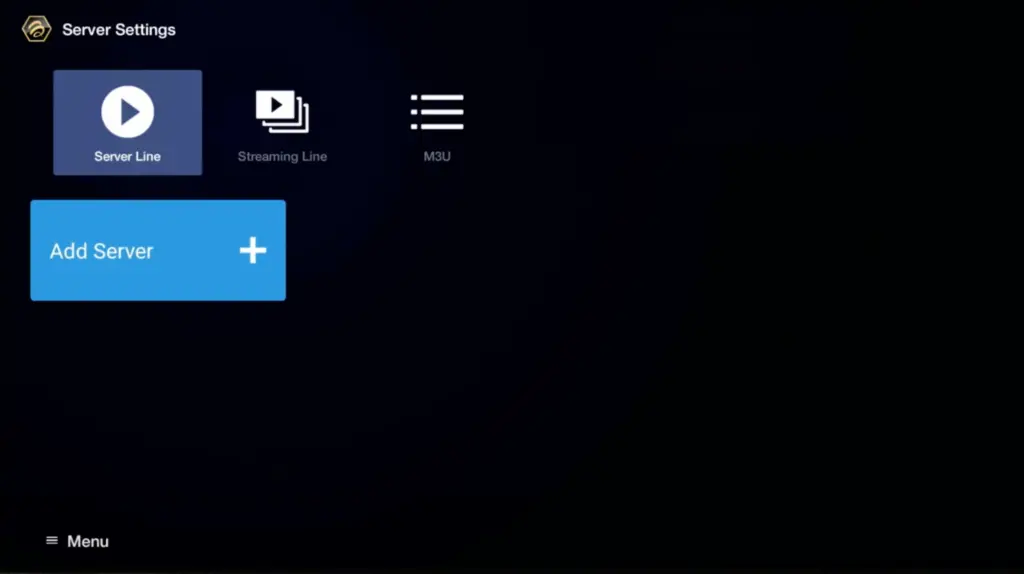
Step 3: Click on “Add Server” or “Add MAC Server”.
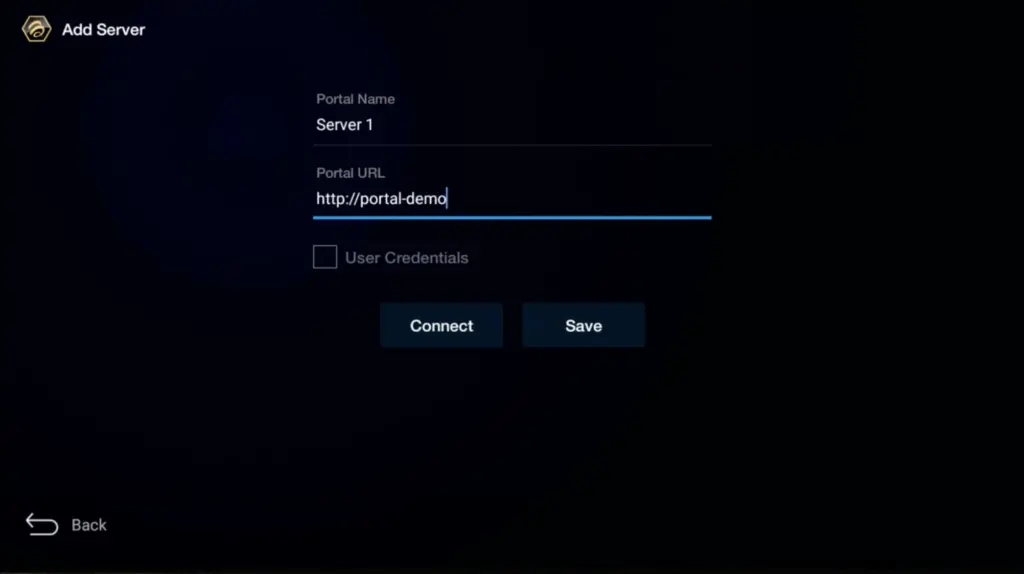
Step 4: Enter “Kemo IPTV” as the Portal Nickname in the first box. Then in the second paste the Portal URL provided by us after subscribing and Click on “CONNECT”.
**Please note, After payment, submit the Form with your device’s MAC address (you can find it at the bottom of your box. Look for a label that says “MAC” or “MAC Address”). This step is essential for activating your Kemo IPTV subscription. Get Your Kemo IPTV Subscription.
Congratulations! You’ve now completed the setup of your BuzzTV Box for seamless streaming.
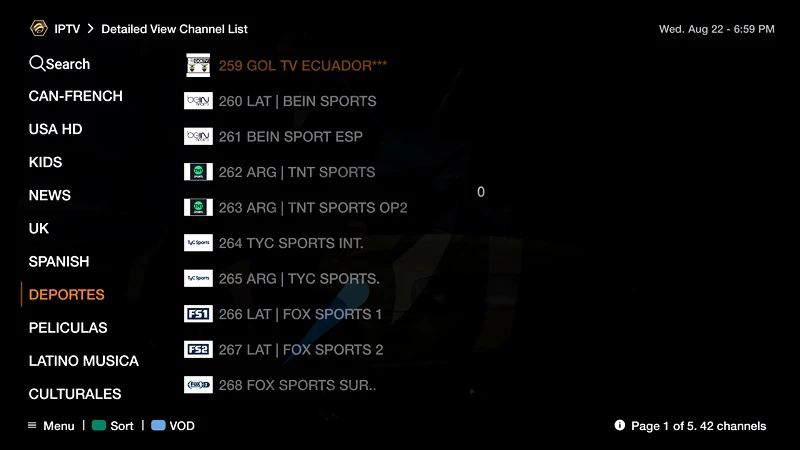
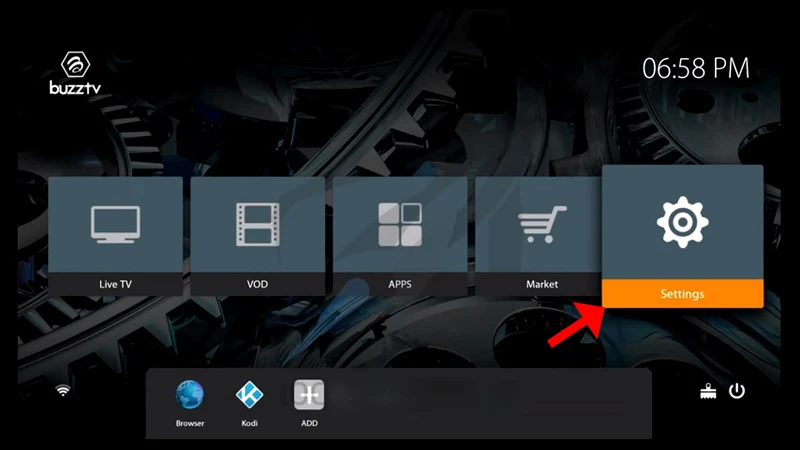
Step 1: On the main menu, click on “Settings”.
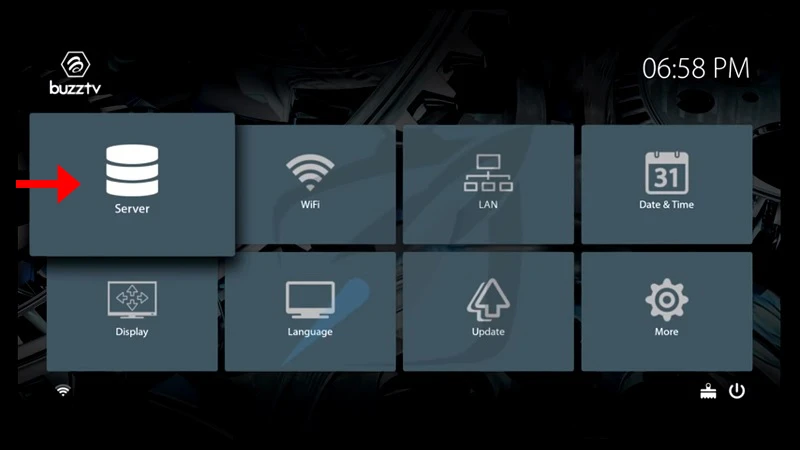
Step 2: Then click on “Servers” and proceed to the next step.
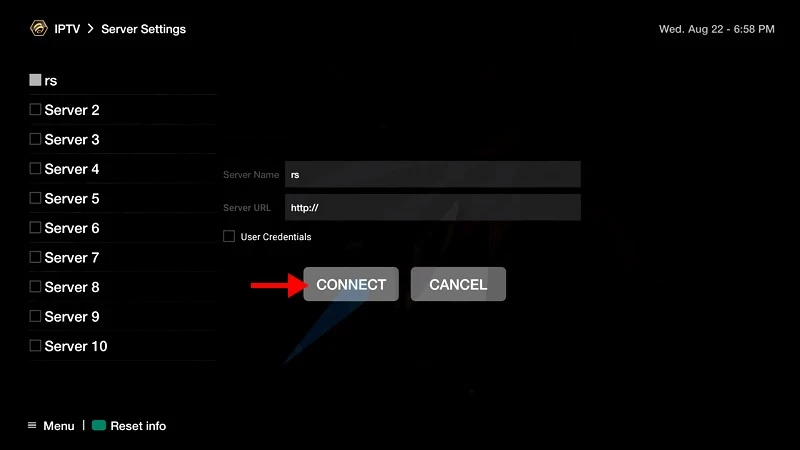
Step 3: Enter “Kemo IPTV” as the Server Name in the first box. Then in the second the Portal URL (Server URL) provided by us after subscribing and Click on “CONNECT”.
**Please note, After payment, submit the Form with your device’s MAC address (you can find it at the bottom of your box. Look for a label that says “MAC” or “MAC Address”). This step is essential for activating your Kemo IPTV subscription. Get Your Kemo IPTV Subscription.
Congratulations! You’ve now completed the setup of your BuzzTV Box for seamless streaming.
Kemo IPTV on BuzzTV Box: Tips & Troubleshooting
"Server Connection Failed" on BuzzTV 5?
Double-check that you entered the exact Portal URL from your confirmation email. Ensure your internet connection is active and that your MAC address has been registered in the Kemo IPTV system.
How to switch between Live TV, VOD & TV Series?
Press the Blue or Yellow button on your BuzzTV remote to toggle between categories, or access the BuzzTV 5 App Grid directly from the home screen.
Clear Cache & Refresh EPG
Go to Settings > BuzzTV Utilities > Clear Cache to maintain smooth, buffer-free playback and speed up EPG channel updates.
Kemo IPTV on BuzzTV Box: Frequently Asked Questions
Which app should I use on a BuzzTV box?
BuzzTV ships with its own player, and the box also runs TiviMate and IPTV Smarters Pro from the Play Store. All three accept Kemo IPTV Xtream Codes.
Does this work on every BuzzTV model?
Yes — the XPL, XRS, and XR series all run Android, so the steps in this guide apply across the range.
How long does setup take?
Around five minutes, most of it spent installing the player. Entering your Kemo IPTV username, password, and server URL is a one-time step.
My remote is painful for typing the password — any shortcut?
Pair a USB or Bluetooth keyboard, or use the BuzzTV mobile remote app. Kemo IPTV passwords are case-sensitive, so it is worth getting it right first time.