Setup guide
How to Set Up Kemo IPTV on a Samsung or LG Smart TV
Samsung and LG run different operating systems, so the app you use differs. Both work; the steps diverge after installation.
You need the username, password and server URL we send after you subscribe. If you have not got them yet, message us and we will sort it out.
- 01
Find your TV's app store
On Samsung this is the Apps tile on the home row. On LG it is the LG Content Store. Both need the TV signed in to a manufacturer account.

- 02
Install an IPTV player
Search for IPTV Smarters, Smart IPTV or Set IPTV. Availability varies by region and by TV year, so install whichever your set offers.
- 03
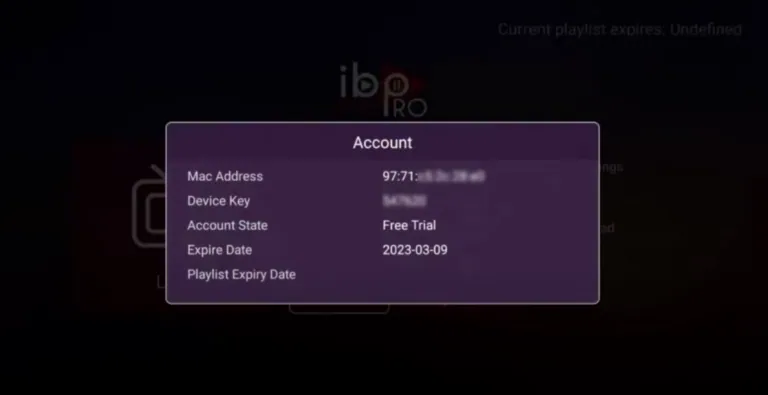
Note the MAC address if the app asks
Some TV players are licensed per device and show a MAC address on first launch. Send that to us and we will activate it against your subscription.
- 04
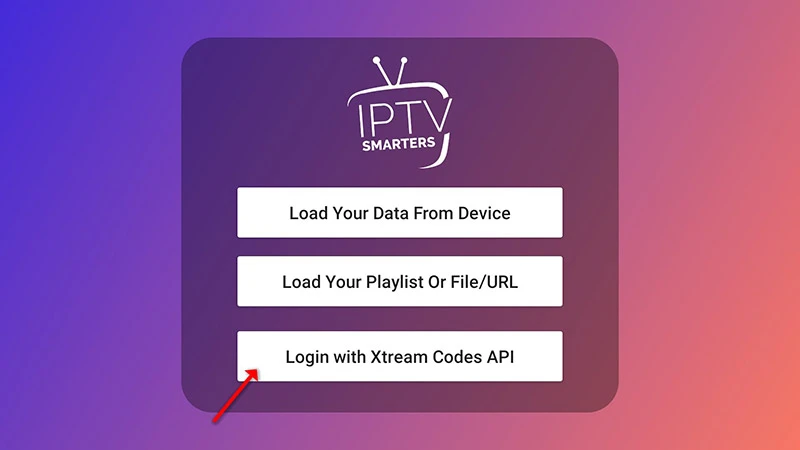
Enter your login details
Where the app offers Xtream Codes, use the username, password and server URL we sent. Where it only accepts a playlist, use the M3U link instead.
- 05
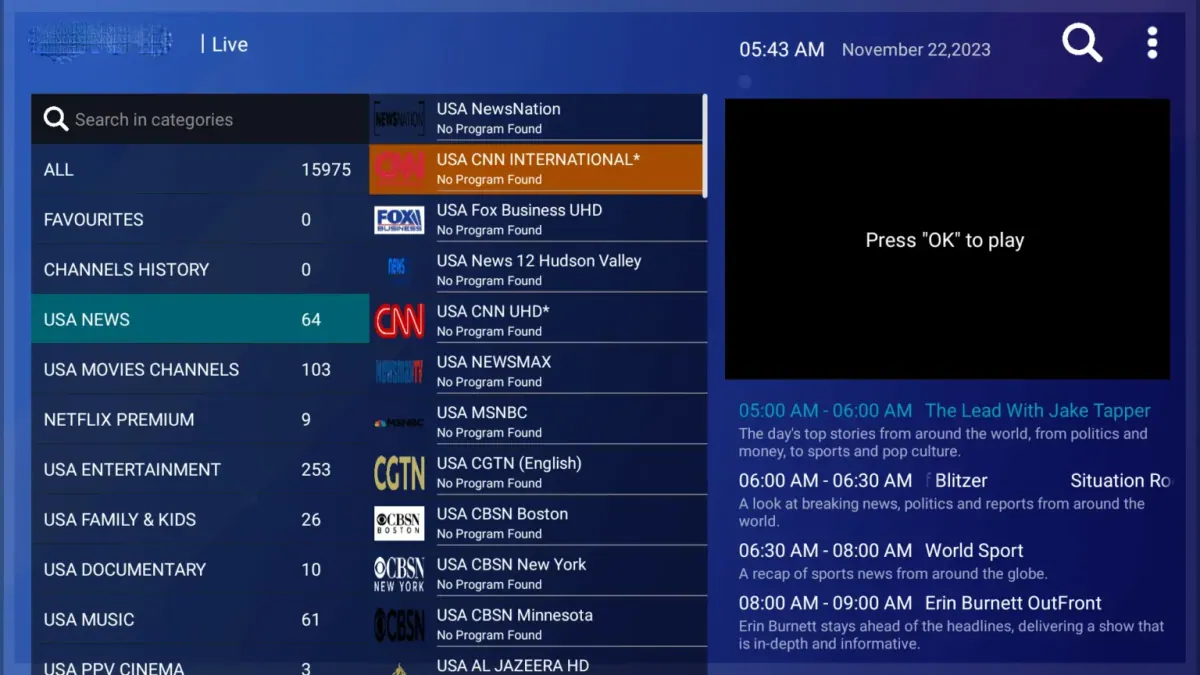
Let the guide load, then sort your favorites
Both platforms let you mark favorite channels, which is worth doing — the full list is long.
Worth knowing
- Samsung sets from 2020 onward handle 4K comfortably. Older Tizen models are more reliable on Full HD.
- If your TV's store has no IPTV player at all, an inexpensive Firestick or Android box plugged into HDMI is the usual answer.
Still not working?
The troubleshooting page covers buffering, login failures and a blank guide in the order worth trying them. Every plan includes a 7-day money-back guarantee, so a setup we cannot fix is not a setup you are stuck with.